
Time stamp setup and usage
Time Stamp setup
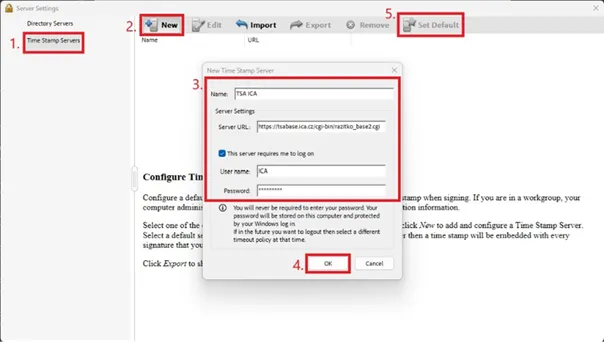
Menu > Preferences > Signature > Document Timestamping > More…
In the dialog window „Server Settings“ in „Time Stamp Servers“ choose option „New“.
In the dialog window „New Time Stamp Server“ we write provided data. See Below.
In the case when you are provided with Username and Password choose option „This server requires me to log on“. In the case of certificate authentication, we only fill in URL server.
After click on OK button, you already set up your Time Stamp Server. The last step is to set the server as default.
Note: In case the server is set as default, stamps will be added automatically at each signature. However, to add a stamp to a document, the server needs to be set as default, Adobe requires it. So, if you only want to add a stamp for certain signatures, you will always need to set and clear the default server in the settings. Clear the default timestamp settings, you find the same place as the timestamp server settings (Menu > Preferences > Signatures > Add timestamp to document > More...) by selecting ,,Clear” which will appear instead of the "Set as default" button.
Adding Time Stamp to document
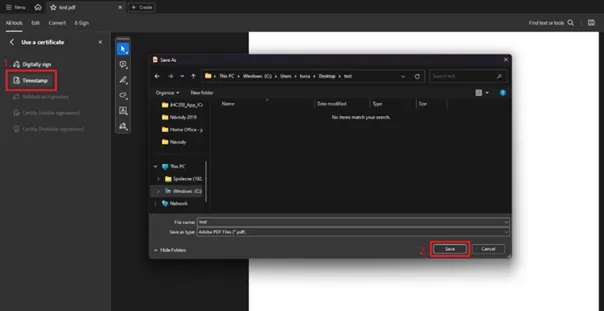
All Tools > View more > Use a certificate > Timestamp
When you click on the “Time Stamp” button, you will be presented with a window for selecting where to save the stamped document. You can rename the document or leave the name the same, in which case the document will be overwritten.