Signature settings in MS Outlook 2016/2019
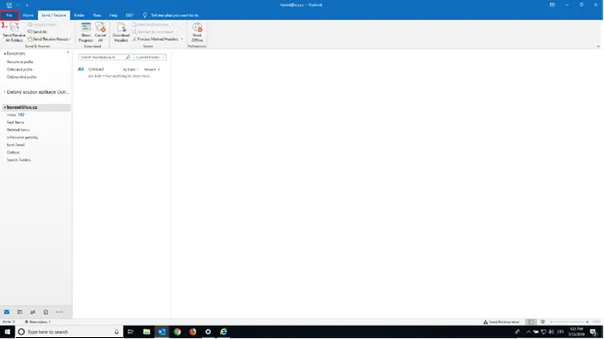
Click the "File" button in the top left corner
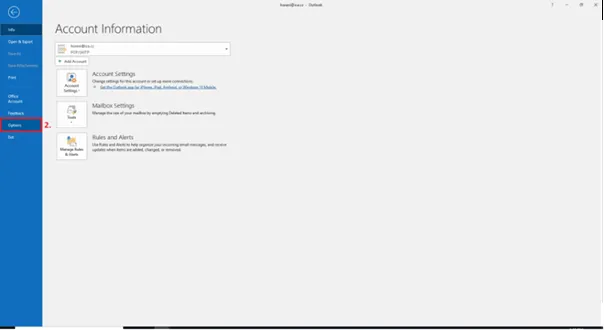
In Outlook Settings, select "Trust Center" and then "Trust Center Settings ..."
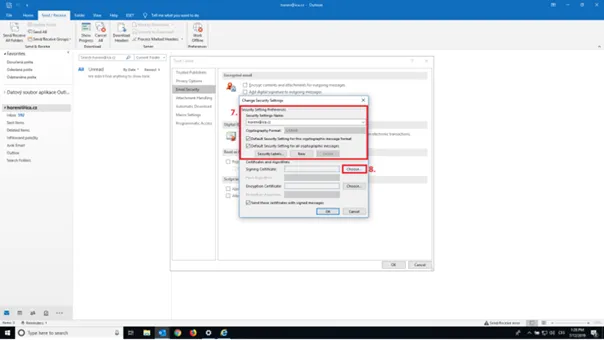
In the next step, you need to set up an email address and a certificate to sign messages. I recommend that you delete the existing settings first or click the „New“ button.
In the Security Settings Name field, enter the e-mail address from which you want to send signed messages and which is also included in the certificate.
It is also necessary to tick: Default Secutity Setting for this cryptographic message format and Default Security Setting for all cryptographic message. As you can see in the picture.
Now click on the button Choose...
A window with certificate selection will appear. You choose your Qualified Certificate (Issuer: I.CA Qualified 2 ...) and click on „OK“ button.
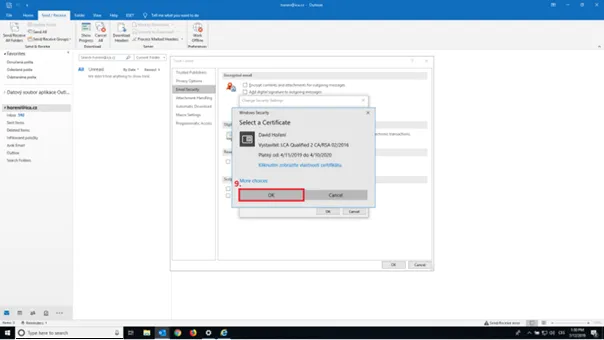
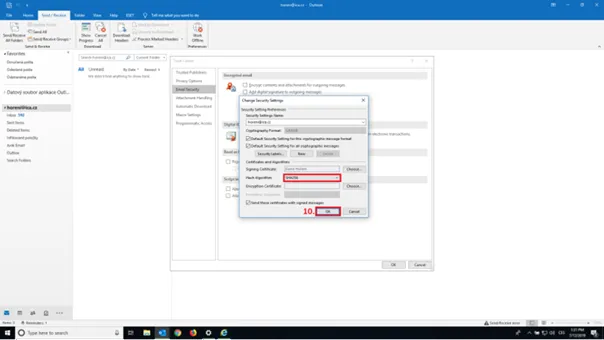
You will already see your certificate selected for signing. I recommend to set Hash Algorithm to SHA256 and confirm with „OK“. This completes the signing certificate setup.